Enter the trailer dimensions.
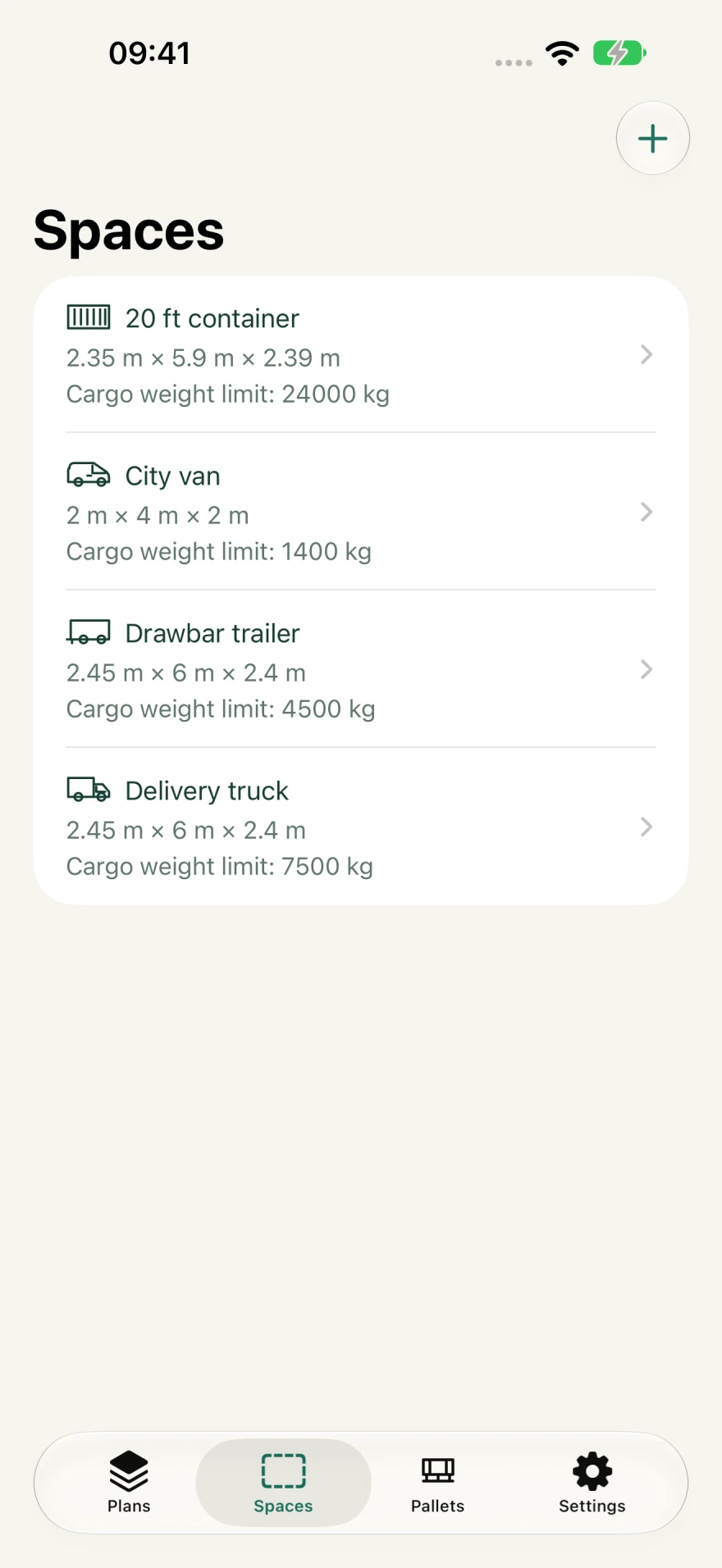
Use the inside dimensions of your trailer, van or container. Save them so you don’t have to enter them for every load.
PALLET LOAD PLANNING, ON YOUR PHONE
Enter your trailer dimensions, pallet sizes and quantities. See what fits, where each pallet goes and what’s left out before you start loading.
For iPhone, iPad & Android · No app account needed
Your trailer. Your pallets.
Your load plan.
PLAN THE LOAD
before it goes on.
TRAILER SIZE. PALLET COUNT. LOAD PLAN.
Different pallet sizes on the same load? Enter what you’re carrying and check the layout before the first pallet goes on.
Use the inside dimensions of your trailer, van or container. Save them so you don’t have to enter them for every load.
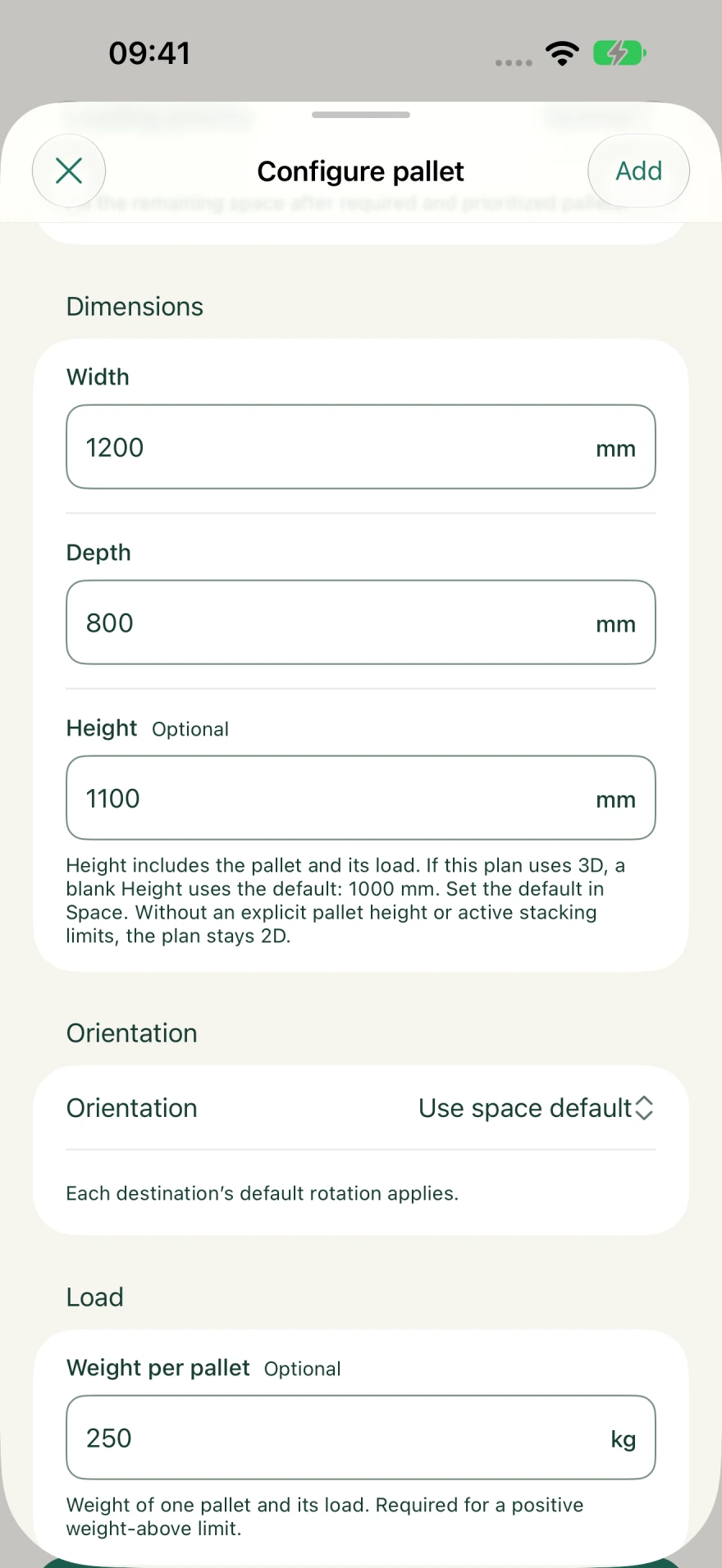
Choose a pallet size or enter your own. Add the quantity and set whether those pallets can be turned or stacked.
Calculate the load plan. Check it from above or in 3D, and see how many pallets fit and how many are left out.
TRUCK, TRAILER & MORE
Choose several cargo spaces and let Palletner distribute the load. Each keeps its own dimensions, height, clearances and cargo weight limit.
Palletner ProRead the full guides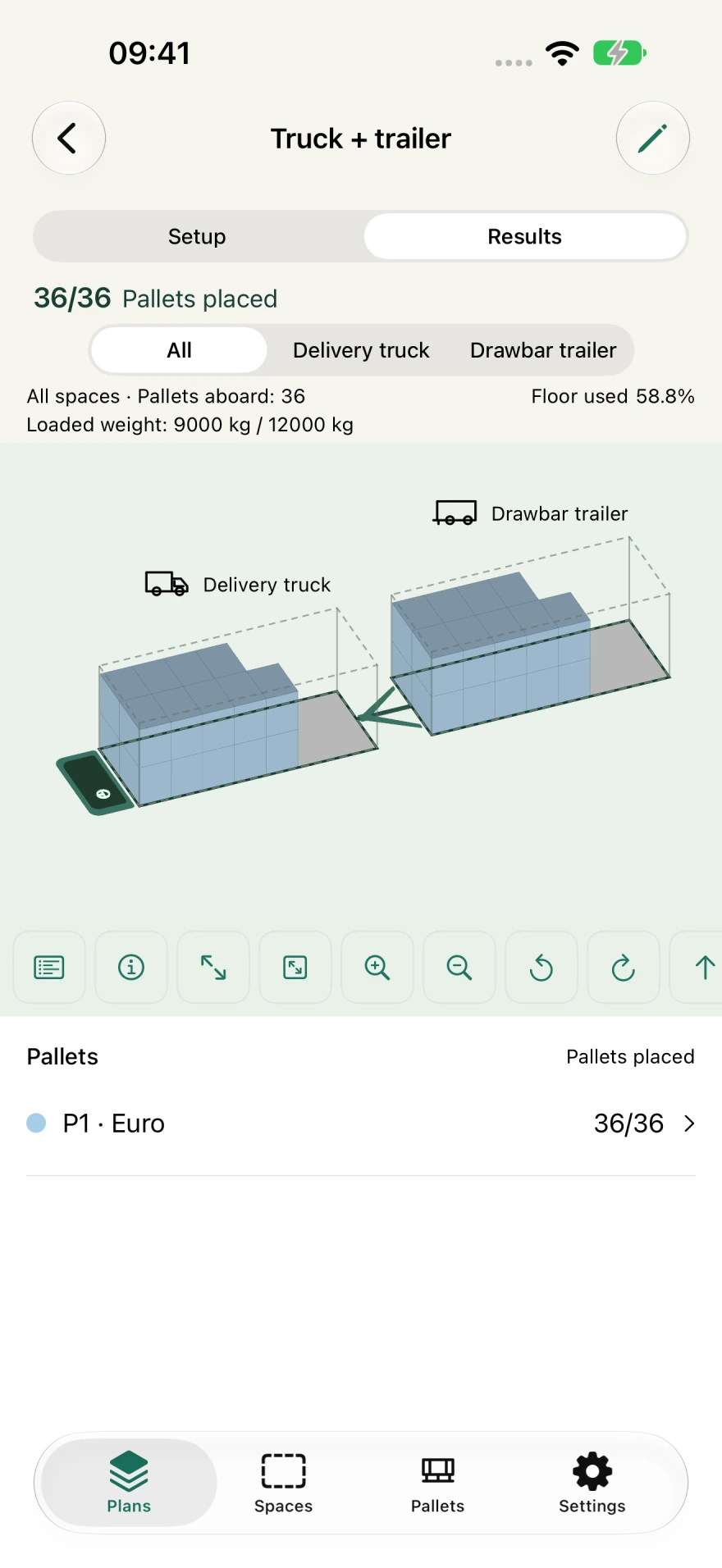
DELIVERY MODE · PRO
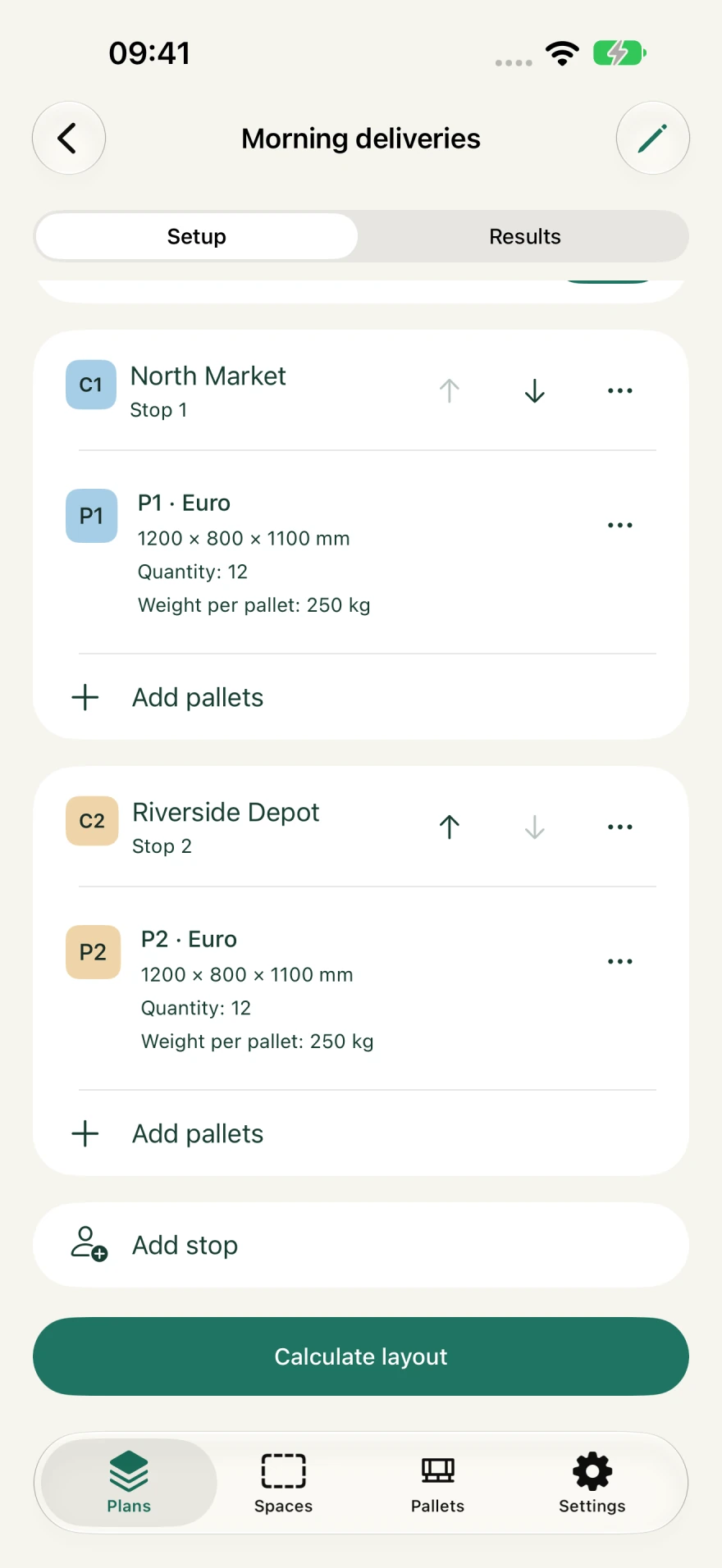
Add customers and arrange the stops. Choose rear, left or right unloading for each space, then check what stays aboard before each delivery.
Open Settings → Manage customers to keep a customer directory. A customer has a required name and optional address, contact person, phone, email and notes. Search the directory when choosing customers for a delivery plan.
Choose a saved customer or create one while adding a stop. Each plan keeps its own copy of customer details. Editing or deleting a directory customer later does not change existing plans or erase their pallets. Unfinished customer drafts can be continued from the directory.
YOUR LOADING RULES
Weight, stacking, turning and priorities affect what fits. Give the calculation the rules for your cargo, then inspect the result.
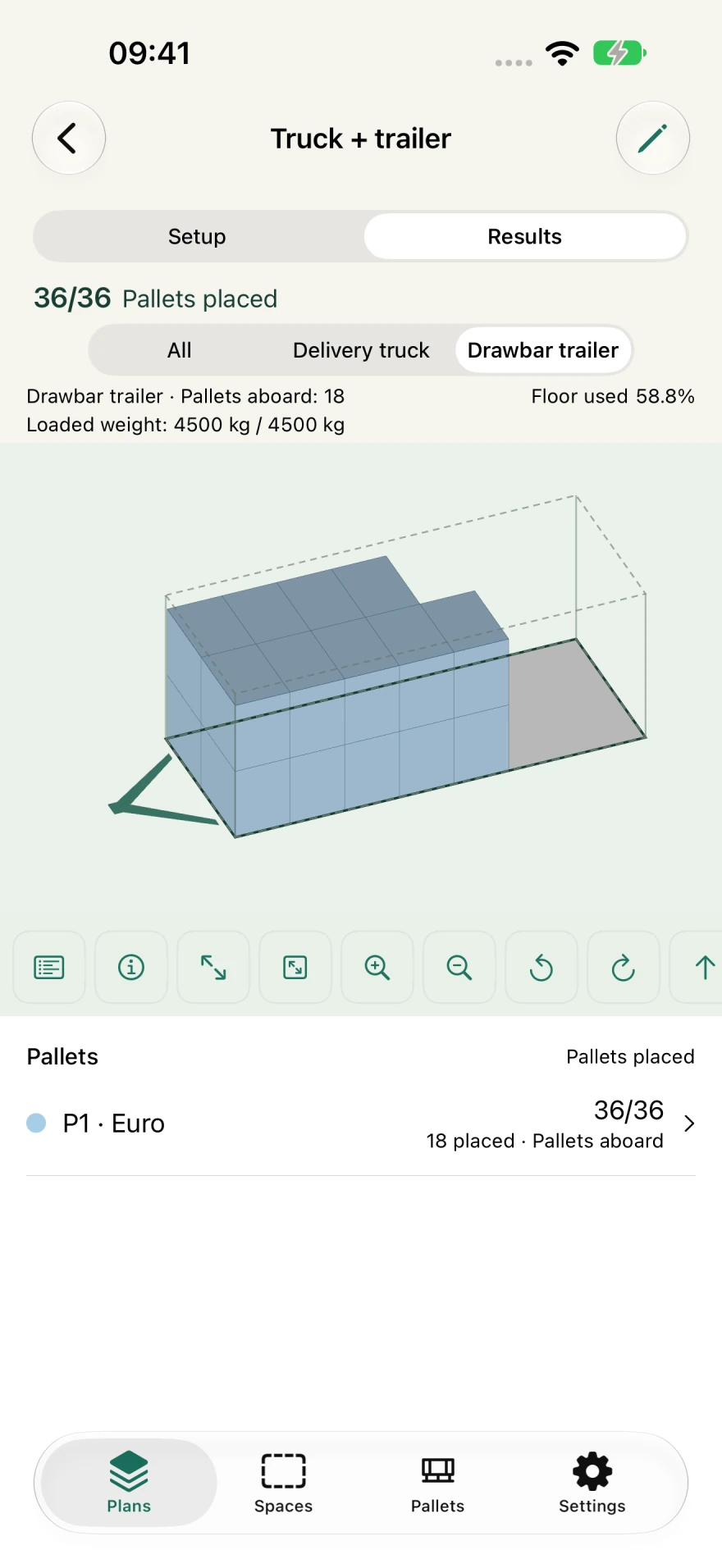
Weight per pallet includes the pallet and its load. A space’s Cargo weight limit covers the combined weight of loaded pallets in that space. Leave the space limit blank when you do not want to supply one. Each space in a multi-space plan has its own limit.
A blank pallet weight is unknown; an entered 0 is a known zero. The app allows missing weights, but only supplied weights contribute to the checked load and reported known-weight subtotal. Results flag an incomplete weight total when relevant pallet weights are missing.
For a space that has a saved cargo weight limit, Setup offers Override weight limit. Turn it on and enter Additional weight in the selected weight unit. The Effective weight limit is the original limit plus that amount; for example, 1,000 kg plus 40 kg gives 1,040 kg for this plan.
This is a planning allowance, not a measurement or confirmation of the vehicle’s actual permitted capacity. It does not supply missing pallet weights or perform axle-load analysis.
Read the full guidesStackable starts off. In a 3D plan, compatible stackable pallets with matching placed footprints can share a vertical stack. Different pallet types, heights and weights can mix. Delivery Mode keeps a stack within one customer’s cargo.
Maximum pallets per stack includes the bottom pallet. Maximum stack height covers the entire stack and its loads. Maximum weight above excludes the selected pallet’s own weight. All applicable pallet limits and the space’s available height must be respected; blank limit fields add no extra restriction.
Read the full guidesWith Pro, a pallet entry can choose Use space default, Fixed, Rotate upright or Allow tipping. Fixed keeps its entered orientation. Rotate upright permits the two upright footprint orientations. Allow tipping permits the available orientations formed by exchanging the loaded width, depth and height axes.
Tipping needs an explicit pallet height, including the load. The resulting placed dimensions and height must fit the selected space and its other rules. The detail panel identifies the placed orientation so it can differ from the dimensions originally entered.
Read the full guidesSet Loading priority on a plan’s pallet entry. Normal fills remaining space. High priority favors that entry when the full shipment cannot be placed. Must load requires all included copies of that entry to be placed before a new result can be saved.
Must load does not make an impossible load feasible. If the calculation cannot satisfy every Must load quantity, it does not save a new arrangement that silently ignores the requirement. Review the quantities, space limits and other rules; an older saved result remains separate.
Read the full guidesSet Left, Right, Front and Back wall clearances in the space editor to reserve floor area along its walls. They start at 0. Apply to all copies Left to the other three walls.
Read the full guidesTap a physical pallet in the layout to highlight it and open its details. In 3D, each pallet in a mixed stack can be selected independently. You can also expand a pallet entry in the legend and choose a placed pallet from its space.
Details include the placed dimensions, supplied weight, upright/rotated/tipped orientation and physical coordinates. Where applicable, they also show layer position, configured dimensions, default-height use, stack limits, weight above and total stack height. These are the values saved with the displayed result.
In 2D, pan and pinch to zoom, then use Fit to space to refit the drawing. In 3D, pan, zoom, rotate and use the available standard views or reset controls. The horizontally scrollable control row keeps these actions available. Full-screen preserves the camera and selected pallet when you enter and leave it. Panning moves the view, not the cargo: pallet positions are calculated rather than edited by dragging.
Read the full guidesIf a calculated plan leaves some pallets unplaced, Results shows a warning and an information button beside the overall placement summary. Open it to see Why pallets were not placed, the affected entries and their missing quantities.
An explanation can identify a verified footprint, height, weight or combined limitation. It can also report that a check was inconclusive. A search that did not find another arrangement does not by itself prove that no arrangement exists; the app does not label every missing pallet Too large or Not enough space without evidence.
Read the full guidesPalletner searches for arrangements that respect the configured cargo and space rules. Must load and High priority take precedence. For otherwise equivalent loads, Settings → Calculation offers Use less floor space or Prefer lower stacks.
A completed search is not automatically a proven maximum, and the layout preferences do not guarantee a globally optimal shape. The app distinguishes a best-found layout from a maximum count it can verify. There is no separate Proven maximum calculation mode.
Read the full guidesREADY FOR THE NEXT JOB
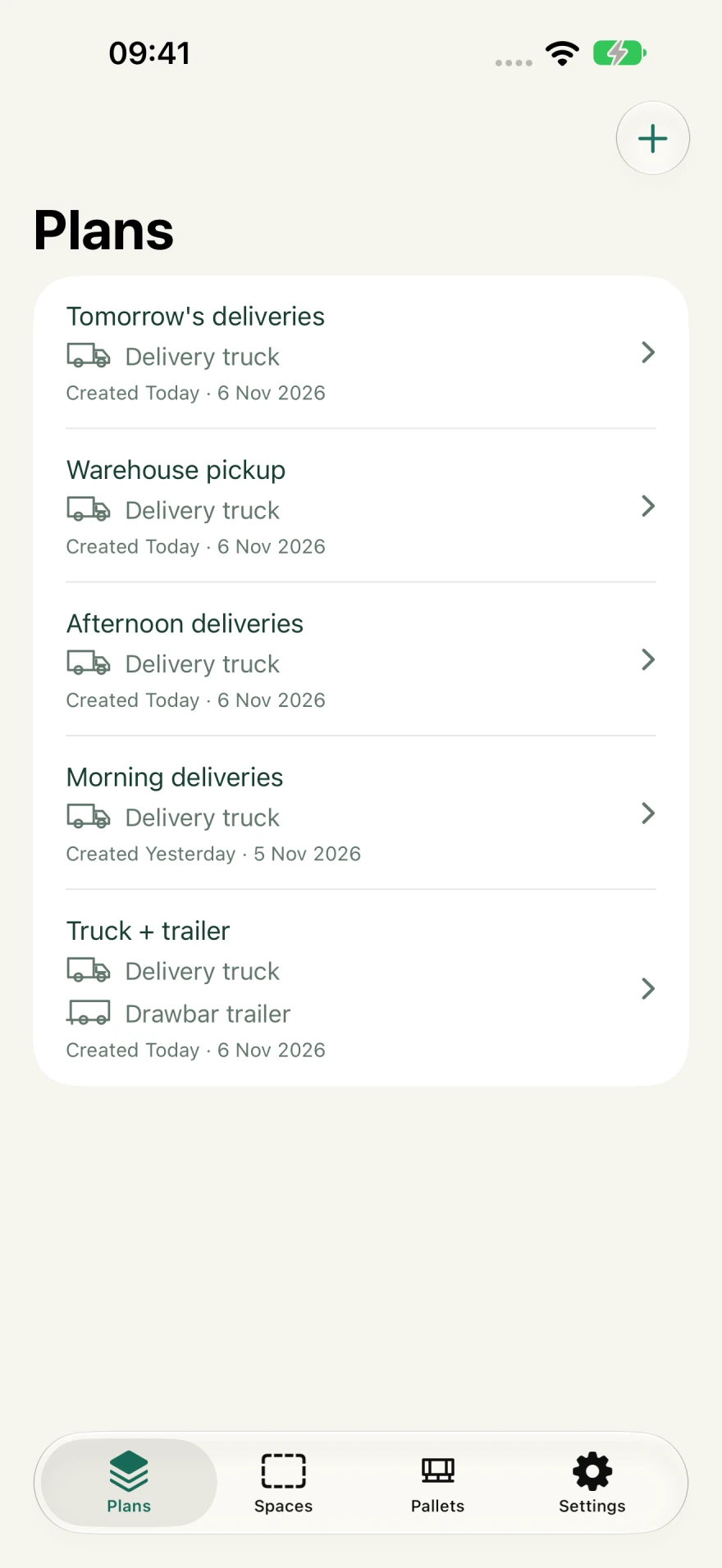
Search, duplicate and reuse plans, cargo spaces and custom pallets. Mix built-in sizes with your own, choose colors and sort your pallet library.
In Settings → Units, choose Space dimensions, Pallet dimensions and Wall clearances independently: metres, millimetres, decimal feet or decimal inches. Weight uses kilograms or pounds.
Settings stays available without Pro. Choose System, Light or Dark appearance; System follows the device. The choice changes the app’s presentation without editing plans.
Language can follow System or use one of the offered app languages. Names and notes you entered are kept as entered. Units and the device’s regional number/date format are separate from the app language.
Read the full guidesiPhone screenshots show fictional sample names and real calculated layouts.
FREE & PRO
1 saved plan, 1 saved space and 1 custom pallet type. Built-in presets, basic single-space calculations, cargo weight limits, wall clearances and result inspection.
Unlimited saved items. Multiple spaces, customers and delivery planning, loading priorities, per-pallet rotation, tipping and stacking with limits.
Pro is a paid subscription. Current prices and terms are shown in the app. Purchases are separate on iOS and Android.
Read the full guidesPALLET SIZES, OVERHANG & TURNING
How many will fit? What about overhang? Can the pallets be turned? Start with the measurements.
A Euro pallet measures 1,200 × 800 mm. For example, a clear 13.6 × 2.45 m floor can hold eleven rows of three: 33 pallets in a single layer. Check the actual loaded dimensions and clearances.
Use the trailer’s actual inside dimensions and allow for the loaded pallet size, overhang and clearance. The loading and unloading access matters too.
See Palletner →Measure the loaded pallet at its widest and longest points. Include anything hanging over the edges, and measure the full height from the floor. For weight, include the pallet as well as the goods.
A pallet size on its own won’t tell you whether an overhanging load fits. Use the dimensions of what you’re actually loading.
See Palletner →Turning a rectangular pallet changes how it uses the trailer’s width and length. The pallet takes up the same floor area, but a different layout may fit.
Only allow turning if the loaded pallet can be handled that way. Check forklift or pallet-truck access at both ends of the job. A fit on screen doesn’t confirm you can load or unload it.
See Palletner →BEFORE YOU GET THE APP
Palletner is a pallet load planning app for iPhone, iPad and Android. Enter the vehicle dimensions, pallet sizes and quantities to see how the pallets fit. It plans the layout, not your route or delivery bookings.
No separate Palletner account is needed. Your load plans stay on your device. Purchases use your App Store or Google Play account.
Yes. Choose from the built-in pallet sizes or enter your own. Add the quantity for each size, including any overhang in the dimensions.
Free includes 1 saved space, 1 saved plan and 1 custom pallet type, together with built-in presets and basic single-space calculations. Pro adds unlimited saved items, multiple spaces in a plan, customers and delivery planning, loading priorities, per-pallet orientation/tipping, and stacking with limits.
No. Palletner shows how the pallets fit. It does not check axle weights, certify load stability or tell you how to secure the load. Check the actual load, vehicle limits, securing and unloading access before loading.
An explanation can identify a verified footprint, height, weight or combined limitation. It can also report that a check was inconclusive. A search that did not find another arrangement does not by itself prove that no arrangement exists; the app does not label every missing pallet Too large or Not enough space without evidence.
Read the full guidesFOR YOUR NEXT LOAD
Your trailer dimensions. Your pallet sizes. A load plan on your phone.